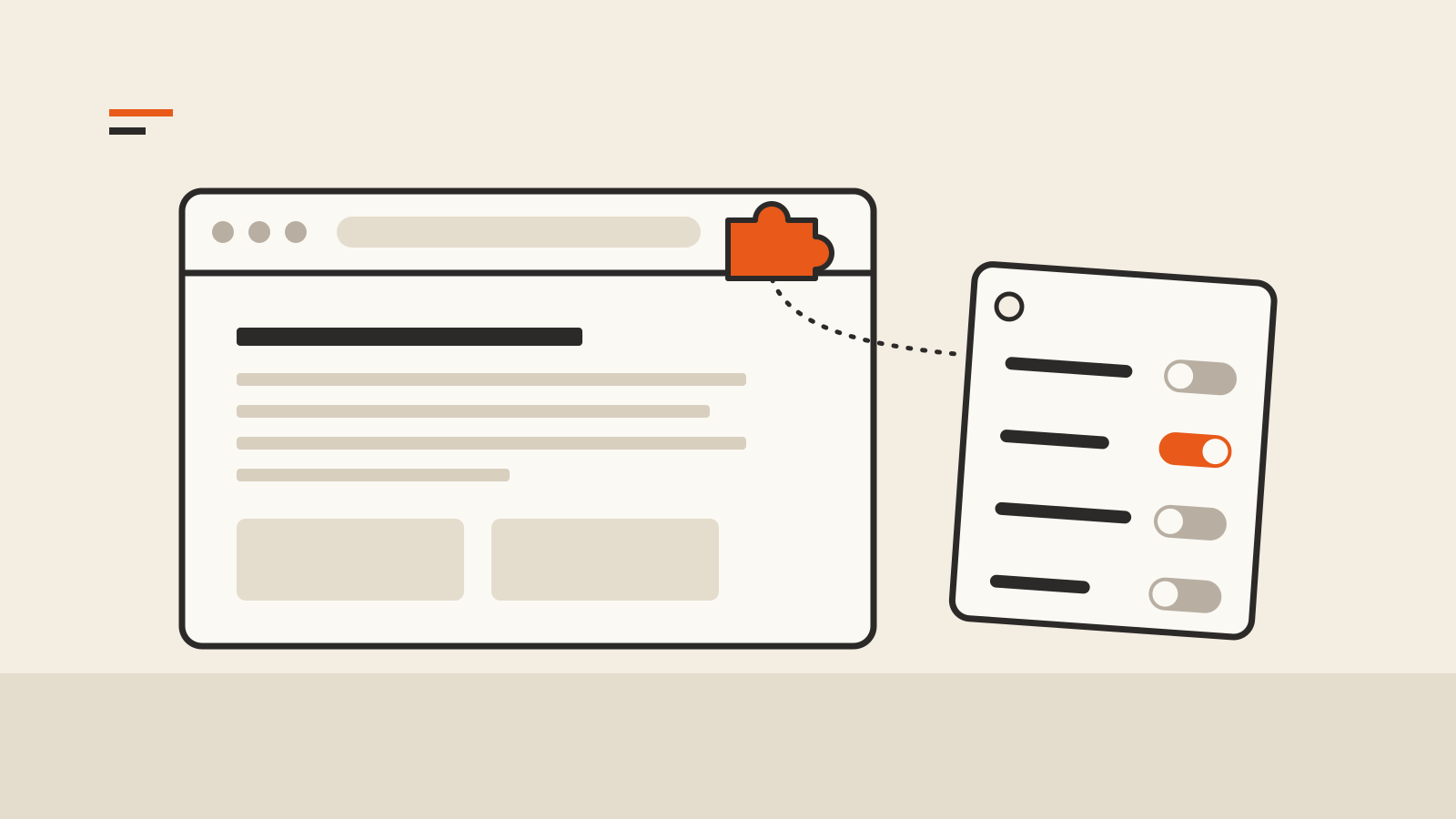
Browser extension permissions decide what an add-on can see and change once it is installed: the pages you open, your browsing history, your clipboard, your downloads. Before you click Add, read the warning list and ask one question of each line: does this extension need that to do the job it advertises?
The warnings are short and sound alike, so it helps to know which ones carry the most reach, which settings let you narrow them afterwards, and what changes when the extension updates.
Why the install prompt matters
An extension runs inside the browser, next to your signed-in sessions. A grammar checker that can read every page can also read your webmail, your bank’s pages and the admin panel you use at work. That is not proof of misuse; it is what the permission makes possible.
Chrome shows a warning only for permissions that reach into your data or settings. Google’s permission warning guidelines note that some permissions display nothing at all, and that one broad permission can hide a narrower one: the “tabs” warning, for example, is not shown when the extension also asks for access to all websites. A short list is therefore not always a small one.
The warnings with the most reach
Google’s permissions list gives the exact wording Chrome shows for each permission. These are the ones worth slowing down for:
| Warning you see in Chrome | What it allows | Who usually needs it |
|---|---|---|
| Read and change all your data on all websites | Read and modify any page you open; also shown for the proxy and debugger permissions | Ad blockers, password managers, translation and accessibility tools |
| Read your browsing history | See the addresses and titles of your open tabs | Tab managers, session savers |
| Read and change your browsing history on all signed-in devices | Read and delete history, including what syncs from other devices | History search or cleanup tools |
| Read data you copy and paste | Read your clipboard | Clipboard managers |
| Manage your downloads | Start, inspect and change downloads | Download managers |
| Manage your apps, extensions, and themes | See and switch off other extensions | Extension managers |
| Communicate with cooperating native applications | Talk to a program installed on your computer | Password managers with a desktop app, enterprise tools |
| Change your privacy-related settings | Change browser privacy controls | Privacy tools |
| Capture content of your screen | Record the screen | Screen recorders, meeting tools |
“Read and change all your data on all websites” is the widest grant in everyday use. Mozilla explains the equivalent Firefox wording, “Access your data for all websites”, in a post on understanding extension permission requests: an ad blocker has to read a page to find the ads, and a password manager has to find the login fields, and neither knows in advance which page will contain them. The same post states the risk plainly: in theory, a malicious developer could say an extension does one thing while it does another.
Match the permission to the job
The useful test is proportion. A color picker that wants your browsing history, or a tab counter that wants your clipboard, is asking for more than its description explains. A password manager asking to talk to a native application may be entirely normal if the vendor ships a desktop app.
Chrome’s developer guidance says extensions must serve a single purpose and request only the permissions that support it. Good developers explain each permission on the store listing. If the listing is silent about a broad permission, treat the silence as information.
Before installing, check:
- The listing. What does the extension say it does, and does it explain its permissions?
- The warning list. Does each line match a feature you will actually use?
- The developer. Is there a website, a support address and a privacy policy that name the data the extension handles?
- The browser’s own signal. With Safe Browsing’s Enhanced protection on, Chrome warns that an extension “is not trusted by Enhanced Safe Browsing” when its developer has not yet reached trusted status; Google’s Chrome Web Store help says new developers generally take a few months to get there.
- Whether you need it at all. Every installed extension is code with access to your browser. Remove the ones you no longer use.
Narrow site access after installing
You do not have to accept “all websites” as permanent. In Chrome, the Chrome Web Store help page describes three levels of site access for an extension that reads and changes site data:
- When you click the extension: access only to the current tab, and only after you click it. Closing the tab ends the access.
- On specific sites: access only to sites you add to an allowed list.
- On all sites: access everywhere, automatically.
Open the Extensions menu, or go to Manage extensions and choose Details, to change the level. “When you click” suits tools you use occasionally, such as a page translator or a screenshot extension. “On specific sites” suits a tool tied to one service.
One limit is worth knowing. Google notes that these site settings do not affect extensions that change network access through VPN or proxy settings. A VPN extension’s reach is set by the proxy permission, not by the site list.
Developers can make this easier with “activeTab”, a permission that shows no warning at all. It grants temporary access to the site you are on, and only after you invoke the extension. An extension built around activeTab and optional permissions asks for access when a feature needs it, rather than at install.
Watch what changes on update
Extensions update in the background, and permissions can change with them. In Chrome, when an update adds a permission that triggers a warning, the browser disables the extension until you accept the new permission, according to Google’s warning guidelines. Read that prompt as carefully as the first one: a new broad permission on a familiar extension deserves the same question you asked at install.
Firefox handles site permissions differently. Mozilla’s host_permissions documentation says that from Firefox 127, site permissions requested by a Manifest V3 extension appear in the install prompt, but new site permissions requested by an update are not shown. The same page notes that users can grant or revoke site permissions on an ad hoc basis, that most browsers treat them as optional, and that Safari does not list requested site permissions in its install prompt at all. In Firefox, review an extension’s permissions in the Add-ons Manager from time to time rather than relying on prompts.
Keep extensions away from what matters most
Permissions are one layer. The other is where you use extensions:
- Keep a separate browser profile with no extensions for banking, payroll or admin consoles.
- In Chrome, an extension runs in Incognito only if you turn on “Allow in incognito” on its Details page; leave it off unless you need it.
- Pre-release browsers are a good place to test a new extension before it reaches your main profile; our guide to browser release channels explains how to run one side by side.
- If an extension handles sign-in, check how it works with passkeys before you depend on it.
The current version of each browser, which sets the permission screens you will see, is on our browser version tracker.