A website offers to create a passkey. You confirm with your fingerprint, and the next sign-in takes a moment. The easy part is visible immediately. The recovery arrangement deserves just as much attention.
A passkey uses a cryptographic credential associated with an account and the relevant service. The site keeps a public key; the private credential is managed by an authenticator, which may be a device, password manager or hardware security key.
What the fingerprint is doing
When you use a fingerprint, face scan or device PIN, you are typically unlocking permission to use the credential locally. You are not sending the website a reusable copy of your fingerprint.
The FIDO Alliance’s passkey overview explains the use of device authentication and the resistance to phishing provided by credentials bound to the correct service. This binding addresses a weakness of passwords: a person can type the same secret into an imitation login page.
That protection does not make an account immune to every attack. A compromised device, weak recovery process or existing stolen session creates a different problem. It is still worth understanding the complete account setup.
Find out where the passkey is stored
Some passkeys synchronize through a credential provider. Others remain bound to a particular authenticator, such as a hardware security key.
A synchronized passkey can make a new device easier to use, but it also makes access to the synchronization account important. A device-bound credential has different recovery implications. Neither arrangement should be assumed from the word “passkey” alone.
During setup, note which provider offers to save it. Check that you can find the credential again in that provider’s interface. If you use multiple browsers and devices, a moment of attention here can prevent later confusion about which account holds the key.
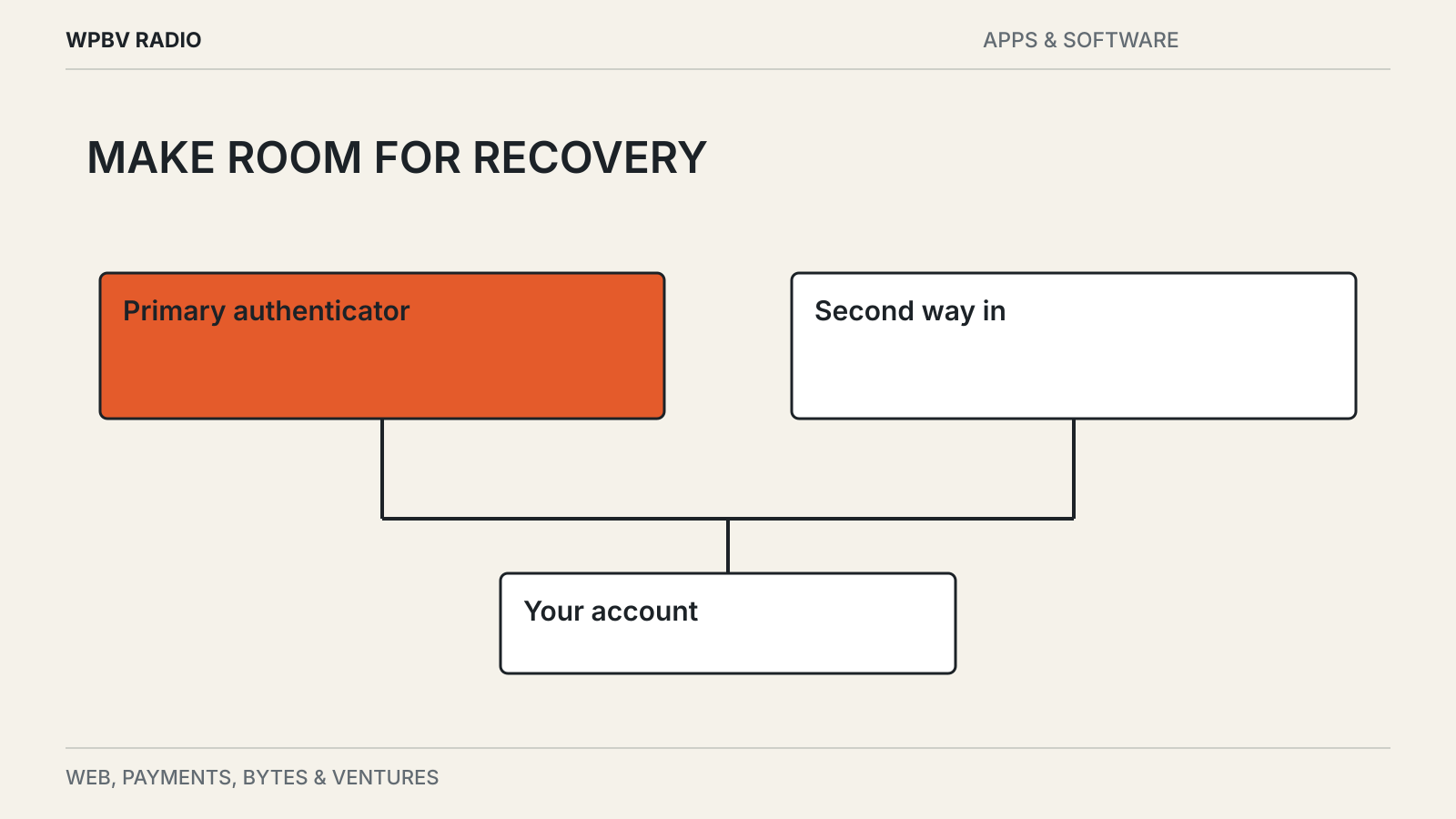
Set up a second way in
Before removing a working password or other sign-in method, inspect the service’s account settings. Can you register a second passkey? Are recovery codes available? What happens if you lose every signed-in device?
Use the supported options and store recovery material in a place you can reach without the lost device. Do not keep the only recovery code inside an account that requires that same code to open.
This is especially relevant for a phone used both to authenticate and to access a password manager. One lost object can otherwise remove several apparent backup routes at once.
Try the devices you actually use
Sign out of a non-critical session and test a fresh sign-in. Then try the other device or browser you regularly use.
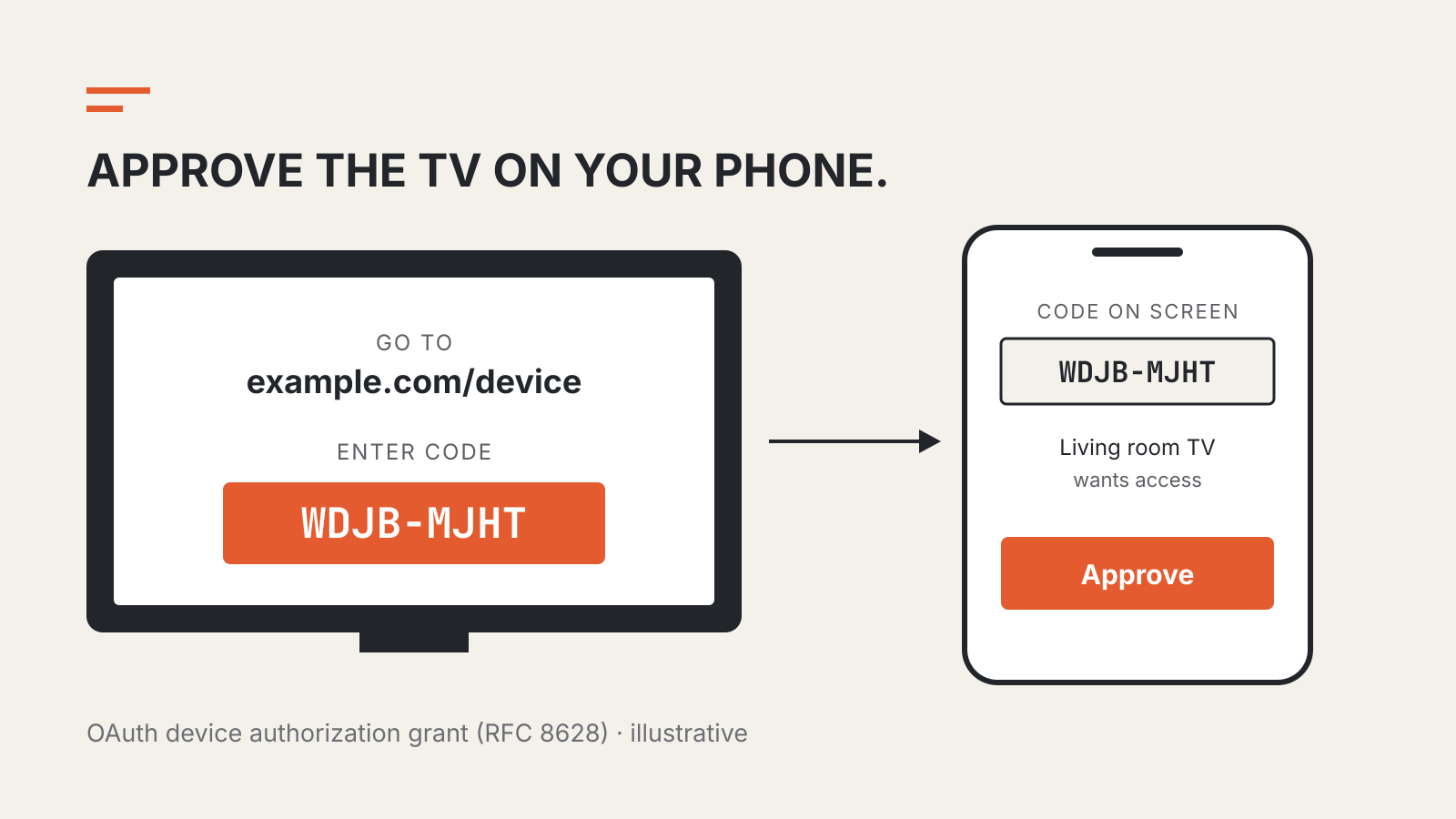
A cross-device flow may involve scanning a code or using a nearby phone. Availability and behavior depend on the operating systems, credential provider and website. A successful demonstration on one platform does not establish that your whole setup is ready.
Check account recovery while you still have working access. You do not need to deliberately lock yourself out; read the settings and confirm the available methods before relying exclusively on the new credential.
Keep account changes understandable
If you change phones or credential providers, plan the transition before wiping the old device. Make sure the new setup works, then remove obsolete credentials from important accounts where appropriate.
Keep recognizable names for hardware keys or device-bound credentials if the service allows it. “Travel key” is easier to manage later than three entries with identical default names.
Passkeys are one part of keeping useful software under your control. Our guide to testing exports before changing apps covers the corresponding problem for your data: a smooth setup is only half the story; a workable exit matters too.