The new notes app looks inviting. You import a few pages, choose a theme and start moving years of work. The export button gets little attention until you want to leave.
Test that button first. A useful export should preserve the information you depend on in a form another tool can read. A folder full of files is encouraging, but it does not tell you whether links still work or attachments made the journey.
Build a small, awkward notebook
Choose a handful of notes that represent your actual collection. Include a long page, a table, a checklist, an image, an attached PDF and a link to another note. If you use tags, nested folders or creation dates to find things, include those too.
This sample should be deliberately inconvenient. A plain paragraph can move between almost any pair of apps. The failures usually appear in the features that made the original app useful.
Export the sample and open it outside the source application. Keep a copy of the originals so you can compare content without relying on memory. This is a suggested migration test; we have not performed a comparative benchmark of note-taking products.
Check files before checking appearance
Open the export folder and look at the file types. Markdown, HTML and plain text can be useful portable formats, but the extension alone does not establish compatibility.
Obsidian’s export documentation explains that its notes are stored as local Markdown files and can be moved as files. That offers a clear starting point for portability. Features layered on top of Markdown may still need attention in another application.
Look for proprietary link syntax, embedded references and metadata. A destination app may display the text correctly while losing relationships between pages. A note titled “Project plan” is less useful if every internal link to it breaks.
Follow every attachment
Find the image and PDF in the exported files. Then open the note and confirm that its references point to those copies, rather than to a temporary URL or an account-protected page.
Try the sample without a network connection. If the image disappears, investigate whether the export saved a link instead of the asset. Some applications can download attachments separately or offer different export options.
Check filenames as well. Two files with the same name can collide during a migration. A folder structure or stable identifier may prevent that, but you want to discover the behavior with a small sample.
Dates and organization are data too
An export that preserves prose but discards creation dates may still be unacceptable for a research archive. Likewise, tags can be part of your retrieval system, not decorative labels.
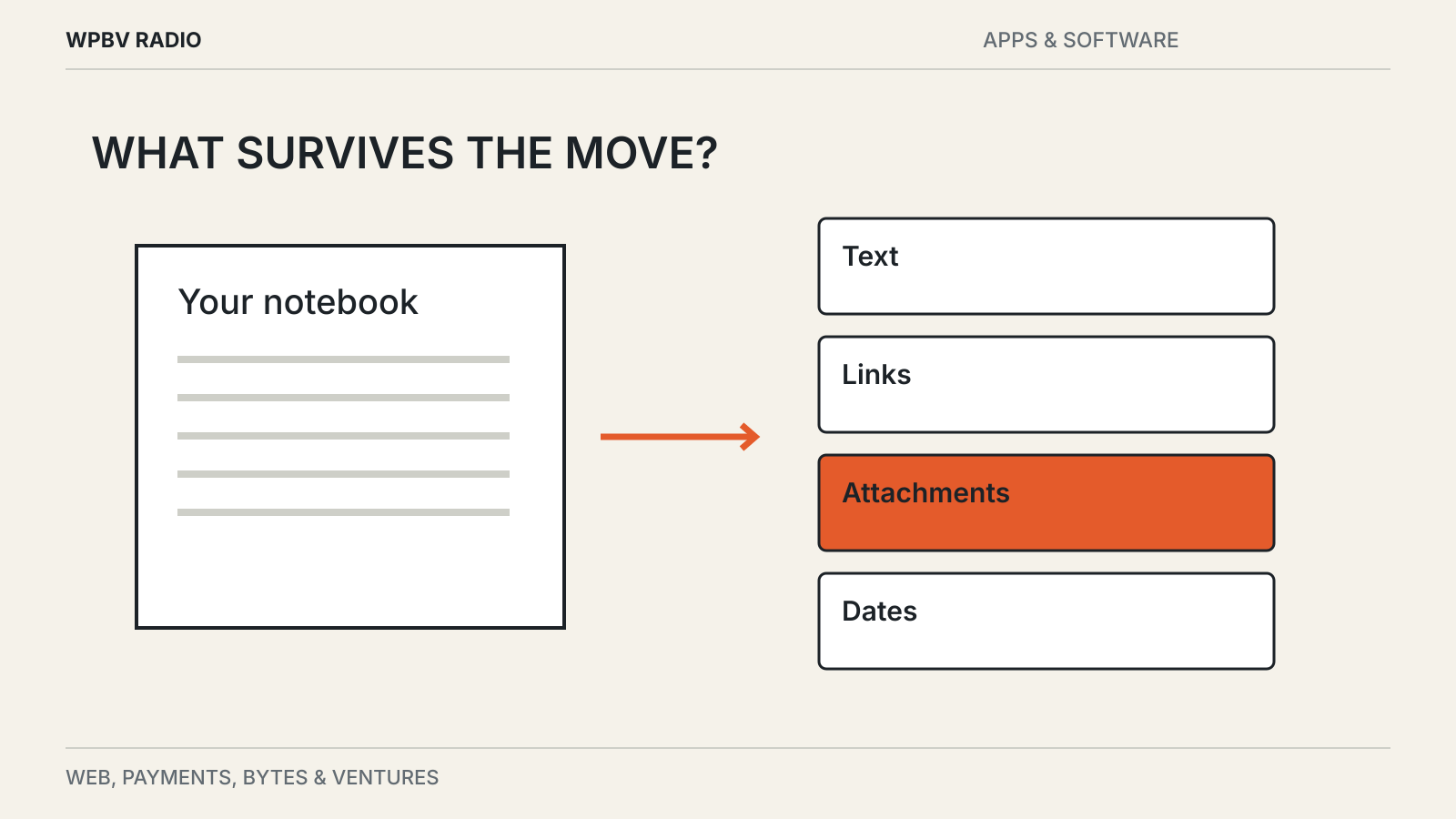
Make a short list of what must survive: original content, attachments, internal links, dates and organization. Separate those requirements from visual preferences such as fonts and card colors.
Then import the sample into the intended destination. Search for a phrase, follow a link and filter using the organization you normally use. This second step catches problems that a file inspection alone cannot reveal.
Keep an exit copy after the move
Once the sample passes, migrate in manageable batches. Retain the old collection and an independent export until you have checked the result. Do not immediately delete the source account because the import reports a successful count.
Counts can hide duplicate pages, missing attachments or flattened structure. Compare a few important projects and a few older notes. The neglected corner of an archive often contains the unusual file that an importer handles poorly.
Portability also depends on whether your working copy remains accessible during an outage. Our local-first app guide explains the difference between local storage, offline caching and a service that must stay reachable.